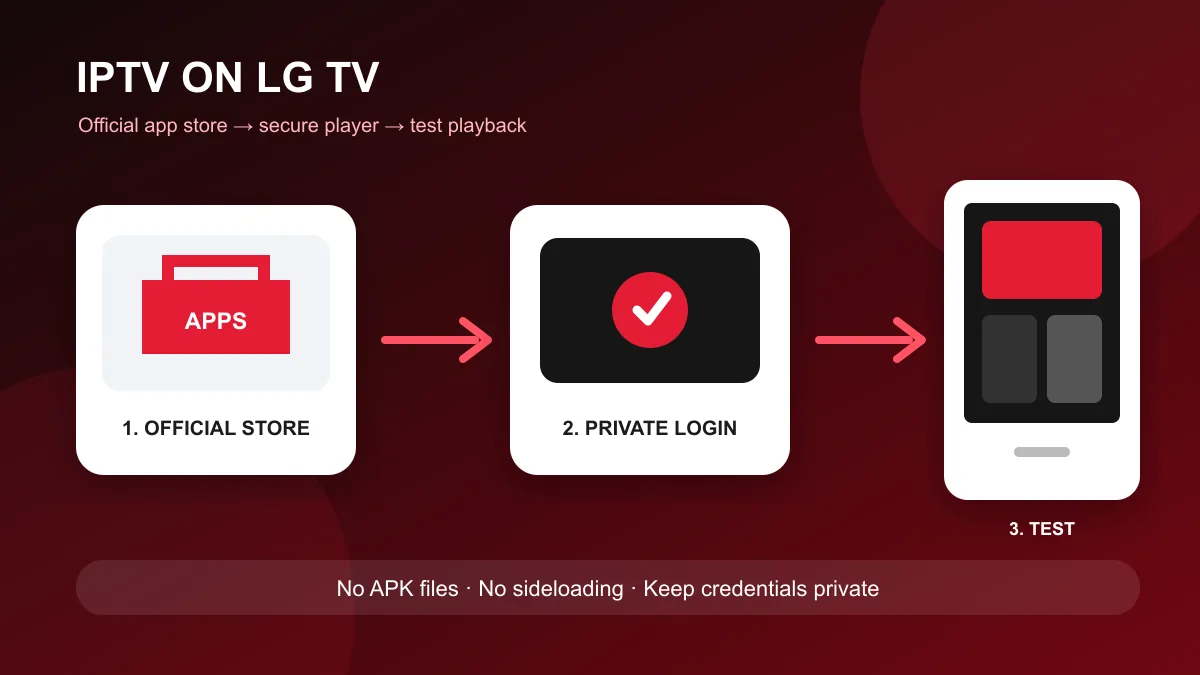
Direct answer: To use an authorized IPTV service on an LG television, install a compatible player from the LG Content Store, open it, and add the access method supplied by your provider. LG televisions run webOS rather than Android, so do not download Android APK files or follow Fire TV sideloading instructions.
Check the LG television before installing anything
LG app availability depends on the television model, webOS version and account region. Open Settings and record the model and software version, then install available system updates. Confirm that the television can open another streaming application before troubleshooting IPTV.
The television should also have:
- The correct date and time
- A stable Wi-Fi or Ethernet connection
- Enough free storage for an application and its cache
- An LG account set to the household’s real region
- Access to the LG Content Store
Changing the account region just to reach an unavailable application can disrupt other services. Choose a player that is officially offered for the television instead.
Install a player from the LG Content Store
Press Home on the remote and open Apps or LG Content Store. Search for terms such as IPTV player or the exact player name recommended for your authorized service.
Before installing, inspect the listing:
- Confirm that it is inside the official LG store
- Read the supported login methods
- Check the publisher name
- Review the privacy information and requested permissions
- Confirm that the app supports the installed webOS version
An IPTV player is only an interface. It does not automatically include channels, films or a subscription. Avoid listings or websites that promise unauthorized free channel packages.
Add the authorized account safely
Different players accept different account formats. Common options include a provider portal with a username and password, an M3U address, or an activation process on the player’s official website.
Enter each value exactly as supplied. A missing character, added space or incomplete https:// address can prevent the catalog from loading. Do not paste credentials into public playlist checkers, social posts or unrelated converter sites.
If the player uses a television identifier or activation code, verify that the activation page belongs to the same publisher shown in the LG store. Never publish the code in a forum because it may provide access to the player profile.
Let the first synchronization finish
A large authorized catalog may take time to organize on its first load. Keep the player open and avoid pressing refresh repeatedly. When synchronization finishes, test a small sample rather than browsing every category.
Check:
- One live item from two different categories
- One film and one series episode, if included
- Search and favorites
- Subtitle and audio selection
- Programme-guide loading
- Remote navigation and the back button
This separates a general login failure from one unavailable item or feature.
Fix an LG IPTV player that will not load
Use a controlled order so one change produces useful evidence.
Confirm the television connection
Open another reputable streaming application. If it also fails, restart the router and television before changing the IPTV player. Test Ethernet temporarily when Wi-Fi is weak in the television room.
The internet-speed guide explains why stability, packet loss and household traffic matter as much as a headline download number.
Confirm the account details
Check that the subscription is active and that the server address, username and password match the provider’s message exactly. If possible, test the same authorized account in one other supported player. A failure in several players points away from the LG installation.
Restart and update the player
Close the app, power-cycle the television according to LG’s instructions, then reopen it once. Install app and webOS updates from official settings. If the player exposes a cache-clear option, use it before deleting the full profile.
Reinstall only after preserving access details
Removing the app can erase playlists, favorites and settings. Record the player name and keep the original provider message before reinstalling from the LG Content Store.
What to do when no compatible LG app appears
Do not force an Android package onto webOS. A separate supported streaming device connected by HDMI is usually the cleanest alternative. It keeps the television as the display while the external device runs its own official app ecosystem.
Choose a device that receives security updates and supports the login method you already use. The device selection guide compares the practical factors to check before buying hardware.
Screen sharing from a phone can work for occasional viewing, but it adds another wireless link and may be restricted by the source application. For regular use, a native store app or supported external device is easier to maintain.
Improve picture and playback quality
Installing the player is only one part of the setup. If menus work but playback pauses, compare Ethernet with Wi-Fi and test during the time the problem normally occurs. If the stream plays smoothly but looks soft, confirm the source quality and television picture mode before increasing sharpness.
Avoid changing player decoder, DNS, VPN and router settings at the same time. Change one item, replay the same authorized source and record the result.
Keep the LG setup secure
- Install television software and players from official stores
- Keep playlist addresses and credentials private
- Avoid APK, USB-install and developer-mode instructions written for other platforms
- Remove unused players and old profiles
- Do not pay an unknown website to activate an unrelated app
- Contact the provider when account status or connection limits are unclear
For a broader television checklist, read how to install IPTV on a Smart TV or use the installation hub to choose another supported device.