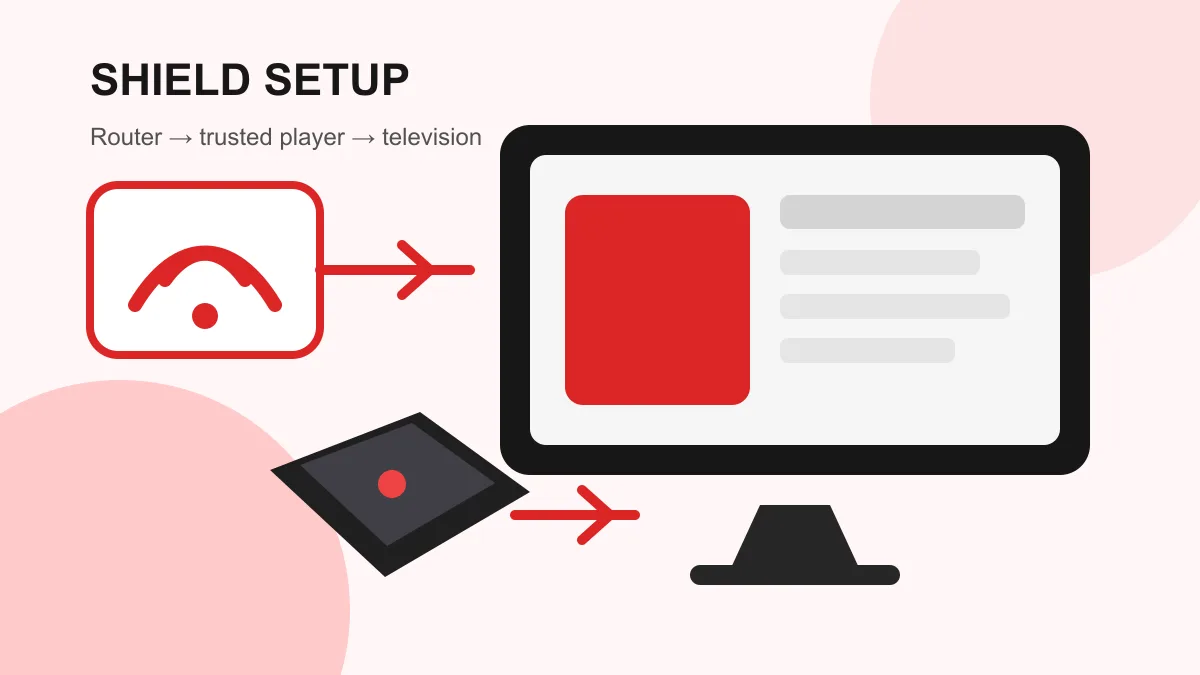
To set up IPTV on Nvidia Shield, install a reputable player from Google Play, use the login method supplied by your authorized provider, let the first playlist refresh finish, and test live television and VOD separately. Nvidia Shield uses Android TV, but its playback options and remote controls make a device-specific check worthwhile.
Prepare the Shield before adding a service
Update Shield Experience and Google Play apps, restart the device, and confirm that ordinary streaming apps work. Check available storage under Settings because a large electronic programme guide and VOD artwork can make a nearly full device unstable.
Keep the provider’s original message available on another screen. You may receive an M3U address, a server address with username and password, or a portal method. These formats are not interchangeable.
If you are comparing devices, the broader Android TV IPTV guide explains the operating-system basics.
Choose and install a trusted player
Search Google Play on the Shield and verify the publisher before installing. A player organizes an existing subscription; it does not include television access by itself.
Look for:
- Support for the login format your provider supplies
- A remote-friendly television interface
- Live, series and VOD sections
- Electronic programme guide support
- Subtitle and alternate-audio controls
- Recent maintenance and a clear publisher identity
Avoid modified APK files, unofficial download codes and websites that ask you to upload a private playlist. If an app is unavailable in your region or on your model, ask the provider for a supported alternative instead of bypassing device security.
Is TiviMate the right player for your Shield?
TiviMate is one option to evaluate if you want a television-focused interface. Its official Google Play listing describes multiple-playlist support, scheduled guide updates, favorites and search. It also explicitly says that it supplies no content. Buying player features does not activate a television subscription or repair an expired provider account.
Before choosing it, check the current listing on your Shield and confirm that your provider’s login format is supported. Compare the things you actually use: whether the remote can reach subtitles easily, whether favorites survive a restart, and whether your supplied guide data loads. These checks are more useful than choosing a player solely because a page calls it the best. This guide does not claim a hands-on comparison or a guaranteed result for every Shield model.
Add the account correctly
Server login
Enter the complete server address, username and password exactly as supplied. Preserve the protocol and port if they are present. Give the profile a recognizable name, then wait for every category to finish loading.
M3U playlist
Paste the full playlist URL into a player that supports M3U. The address may contain private account information, so do not share screenshots of it or test it on an unknown website.
Portal setup
Some portal systems require a device identifier to be registered by the provider. Use only the identifier shown by the supported app and confirm the portal address before retrying.
Separate the player account from the provider account
If a screen asks you to unlock premium player features, that is not necessarily the screen for importing your television service. Identify which account the screen is asking for before entering anything. Never paste an M3U address into a password field or use the player’s purchase receipt as a provider login.
A useful first checkpoint is whether the playlist imports at all. If no categories appear, investigate the login, format and account status first. If categories load but one item will not play, the playlist import has succeeded; repeated account deletion is unlikely to identify that item’s problem.
Configure playback without changing everything
Start with the player’s default hardware decoder. Test one live stream and one VOD item before adjusting advanced options. If video is black but audio works, compare the alternate decoder once and restart playback.
Nvidia Shield can match display modes in supported apps. Frame-rate matching may reduce judder when the app and television support it, but switching modes can briefly blank the screen. Change one option at a time so you know what helped.
Keep the television’s overscan disabled so menus and subtitles are not cropped. If HDR looks wrong, confirm the Shield display mode, HDMI input capability and television HDR setting before blaming the playlist.
Test the setup in a useful order
After the first refresh, check:
- Two live categories and several channels
- One film and one series episode
- Search and favorites after reopening the app
- Electronic programme guide data
- Subtitles and alternate audio where available
- Playback during the time you normally watch
This separates an isolated item from an app, account or network problem. Follow the IPTV trial testing checklist on the same home connection and device you plan to keep, and confirm current trial availability through the contact page.
Record a first-playback baseline
Use a short note with the Shield model, app version, connection type, time and result. For example, a diagnostic note could say: “Playlist imported; live video starts; one VOD item has sound but no picture; Ethernet; default decoder.” This is an example of what to record, not a customer result or a test we performed.
Change only one setting, replay the same item and compare the result. If it makes no difference, restore the original setting before trying another. Do not include passwords, playlist addresses or account identifiers in a public screenshot. This baseline makes it easier to distinguish an import failure from a playback failure when asking for help.
Fix buffering on Nvidia Shield
Restart the Shield and router, then compare Ethernet with Wi-Fi if possible. Test beside the television rather than beside the router. Pause large uploads, cloud backups and game downloads during the comparison.
For a model-specific starting point, consult NVIDIA’s Shield TV support guide. It covers the wired/Wi-Fi connection and choosing the correct HDMI input for a 4K display. A television reporting a 4K HDMI signal does not by itself prove that the original stream is native 4K; check the player’s source information where available before changing network settings to solve a picture-quality problem.
If every streaming app buffers, investigate the home network or internet connection. If only one player buffers, compare its decoder and cache settings. If only one item fails, report the exact item and time to the provider.
Use the IPTV internet speed guide to distinguish bandwidth from Wi-Fi stability, latency and household congestion.
Fix login and empty-category problems
For a rejected login, recheck capitalization, spaces, server protocol and account status. Do not repeatedly submit the same credentials. For empty categories, wait for the refresh, check hidden-category filters, refresh once, and compare the same account in another supported player if authorized.
Clear the player’s cache only after a normal restart fails. Clear app data or reinstall only after saving the account details because those actions can remove profiles and favorites.
Keep the Shield secure and maintainable
Install updates from official sources, remove unused sideloaded apps, protect private playlist details, and do not grant file or accessibility permissions unless the player’s documented function requires them. Keep enough free storage for app updates and guide data.
If you want help selecting a plan after testing the device, review the IPTV subscription options or contact StreamHub through the site’s WhatsApp button with the Shield model, app name and exact error message.