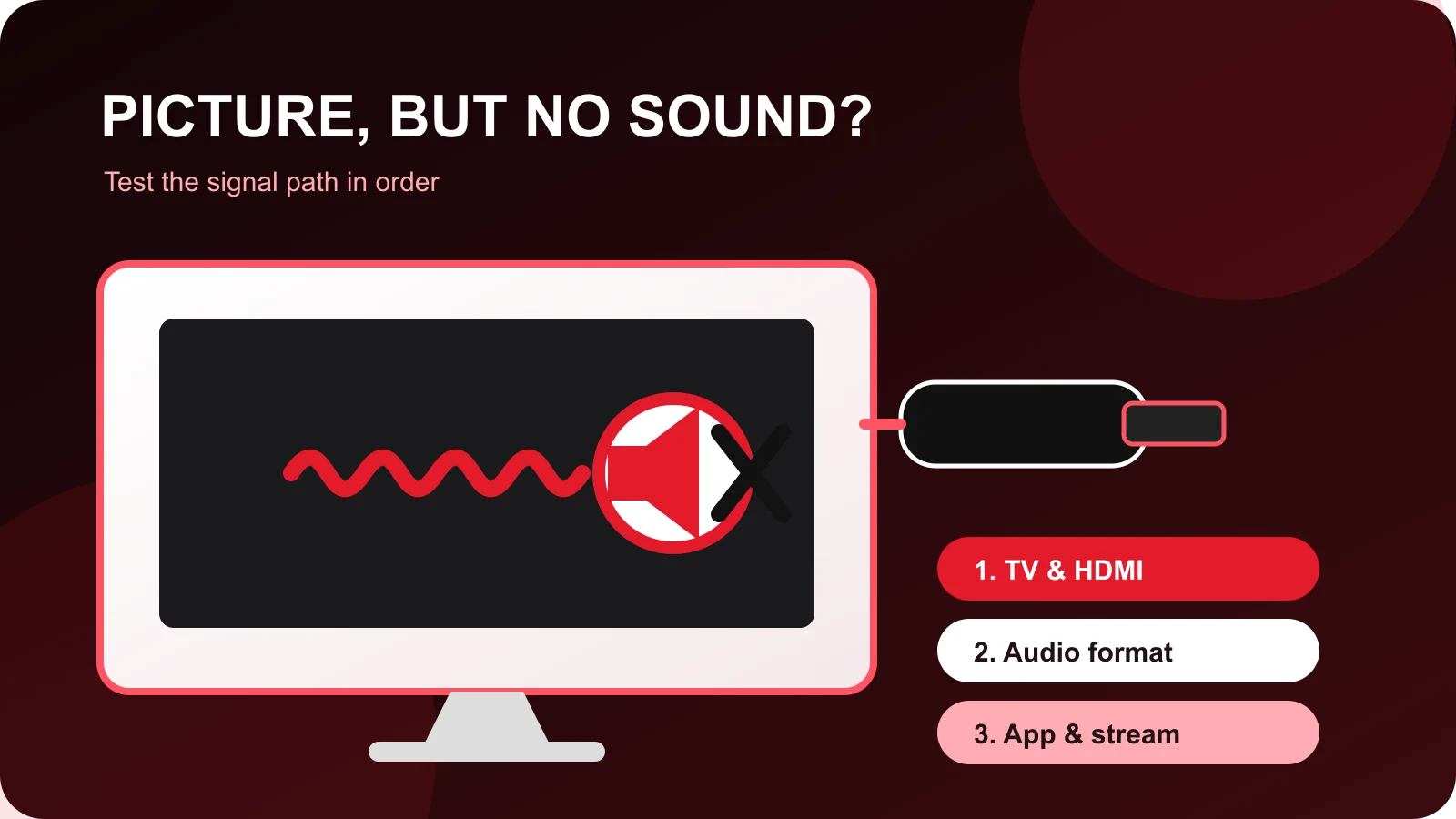
If your Firestick shows a picture but produces no sound, first test another app and another TV input. If every app is silent, check the television, HDMI connection and Fire TV audio format. If only one app or one stream is silent, troubleshoot that app or item instead of resetting the whole device.
Confirm what has actually lost sound
Open a normal app you trust and play a short video. Then return to the app where the problem appeared and test a second item.
- Every Firestick app is silent: focus on the TV, HDMI path and Fire TV settings.
- One app is silent: focus on that app, its player and its permissions.
- One live channel or VOD item is silent: the source or audio track may be the issue.
- Sound works through TV speakers but not a soundbar: focus on ARC/eARC, the receiver and supported audio formats.
This short comparison prevents a full reset when the problem is limited to one item.
Check mute, volume and the selected output
Raise the television volume with the TV remote, not only the Fire TV remote. Confirm that neither the television nor a connected soundbar is muted. If the TV has a speaker-output menu, verify that it points to the speakers you are actually using.
Temporarily select the TV’s built-in speakers. If audio returns, the Firestick and app are probably working and the remaining issue is between the TV and external audio equipment.
Restart the Firestick and the audio chain
Use Settings, My Fire TV, Restart. If the menus are unresponsive, disconnect the Firestick’s power, wait about a minute, reconnect it, and let it finish starting before opening the app.
Restart the television and soundbar or receiver as well. HDMI devices negotiate video and audio capabilities when they connect, so restarting the complete chain can correct a failed handshake.
Test the HDMI connection
Remove and firmly reconnect the Firestick. If you use an HDMI extender, receiver or switch, temporarily connect the Firestick directly to the television. Try another HDMI input if one is available.
Keep the Firestick powered by its proper adapter rather than an underpowered television USB port. Unstable power can cause behavior that looks like an app problem.
Change the Fire TV audio format once
Open Settings, Display & Sounds, Audio, then Surround Sound. The labels vary by Fire TV version, but the available choices normally include an automatic option and PCM.
Try PCM as a compatibility test, then replay the same item. PCM may help when a television or soundbar cannot decode the format selected automatically. If it makes no difference, restore the previous setting rather than changing several audio options at once.
Fix sound in only one IPTV player
If other Firestick apps have sound, do not factory-reset the device. In the affected player:
- Stop playback and reopen the same item.
- Check for an alternate audio track.
- Test another authorized live or VOD item.
- Switch between the player’s supported hardware and software decoder once.
- Force-stop the app and clear its cache, not its stored data.
- Install the current official app update.
Clearing app data or reinstalling can remove saved profiles and favorites, so keep those steps for last. Never publish or upload a private playlist URL, username, password or portal address while asking for help.
For installation checks, use the Firestick IPTV setup guide. A player organizes access supplied by an authorized service; it does not provide channels by itself.
Check whether only one stream is silent
Try two or three unrelated items. If most content has sound and one item does not, changing the television or Firestick settings is unlikely to help. Look for another audio track and report the exact item, time and player to the provider without including private credentials.
If the picture also freezes, that is a separate symptom. Follow the IPTV buffering checklist and compare Wi-Fi with Ethernet before changing audio settings.
Update before considering a reset
Check Settings, My Fire TV, About, Check for Updates. Update the affected app from its official store or publisher, then restart and retest.
A factory reset should be the final option because it removes apps and local settings. Before doing it, confirm that the same Firestick is silent across multiple apps and HDMI inputs and that the television has sound from another source.
Use a short result-based checklist
Work through these checks in order:
- Test another app and another item.
- Verify TV, soundbar and receiver volume.
- Restart the Firestick and audio equipment.
- Connect directly to another HDMI input.
- Test PCM once.
- Force-stop and clear only the affected app’s cache.
- Check alternate tracks and decoder options.
- Update Fire TV and the app.
If you are testing StreamHub on a Firestick, send the device model, app name, whether other apps have audio, and the first step that changed the result through the site’s WhatsApp button. You can also use the 24-hour IPTV trial checklist before choosing a plan.