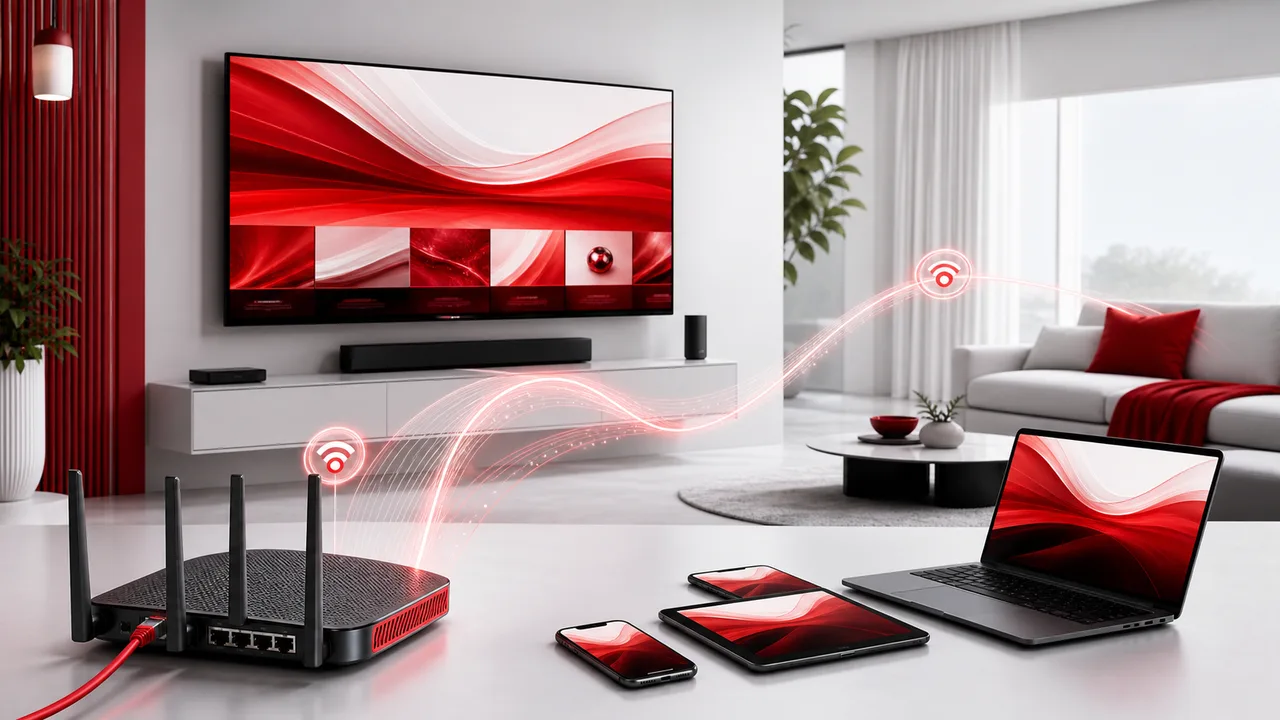
Quick answer: Test another title, restart the player and router, try Ethernet, then lower video quality. This sequence quickly separates a source problem from a home-network or device problem.
Buffering does not always mean a streaming service is down. Wi-Fi interference, internet congestion, device storage, background downloads and selected video quality can all affect playback.
1. Test another channel and one VOD title
If only one item has a problem, the issue may be specific to that source. If everything buffers, focus on the network, player and device.
2. Restart in the right order
Close the player, restart the streaming device, then restart the router. Wait for the connection to return fully before testing again.
3. Try Ethernet
A cable avoids wireless interference and usually gives a television or box a more consistent connection. If Ethernet fixes the issue, the subscription was not the cause.
4. Improve the Wi-Fi signal
Move the router into an open, central position and keep it away from thick walls and large appliances. Test closer to it. Use 5 GHz at shorter range for capacity; 2.4 GHz may reach farther but is often busier.
5. Lower playback quality
Test HD instead of 4K. Stable HD is better than repeated stops at a resolution the connection cannot sustain. Some players also expose buffer size or decoder options; change one setting at a time.
6. Close apps and free storage
Older televisions and inexpensive streaming devices can run short of memory. Close unused apps, remove software you no longer use and keep enough free space for updates.
7. Pause other heavy traffic
Cloud backups, game downloads, video calls and several simultaneous streams share the same connection. Pause them during a test so you measure the stream under controlled conditions.
8. Compare different times
Run the same test in the afternoon and during the evening. A repeatable time pattern can indicate local or internet-provider congestion.
9. Update the router and player
Install updates from the manufacturer or official app store. Network-device updates can include security and stability fixes. Avoid unofficial firmware unless you understand the risks.
What to send support
Include your device model, player name, whether Wi-Fi or Ethernet is used, measured speed, affected title, exact time and whether other items work. This is far more useful than writing only “it buffers.”
Frequently asked questions
Why does streaming buffer when a speed test looks fast?
A speed test is a short measurement to a nearby server. Wi-Fi interference, packet loss, router load, device performance or the route to a particular source can still cause interruptions.
Will a VPN always fix buffering?
No. A VPN changes the route and adds encryption overhead. It may help in a limited routing case, but it can also reduce speed. Diagnose the local network first.
Does clearing the player cache help?
It can help when temporary data is damaged or storage is nearly full. Do not clear all app data unless you saved your login details because it may sign you out.
Use our internet speed for IPTV guide for a household calculation, or contact us on WhatsApp with the details above.