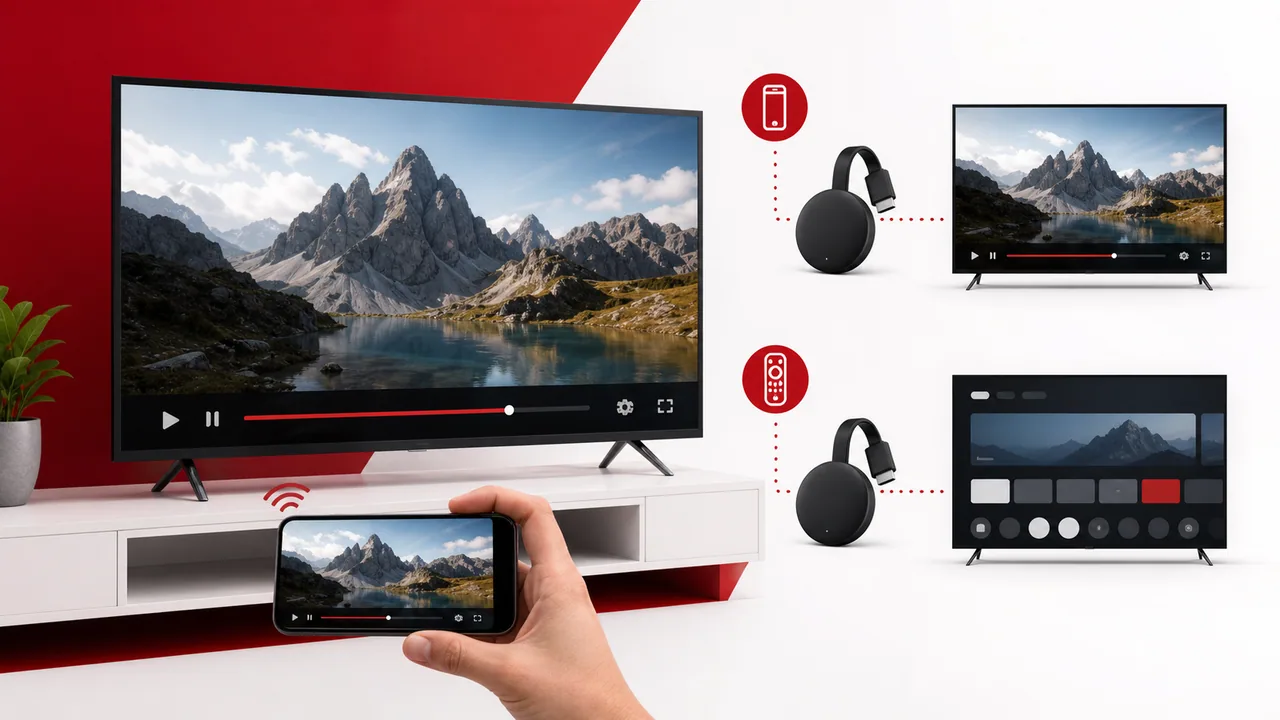
Direct answer: There are two different Chromecast setup methods. A classic Chromecast receives video cast from a compatible phone or tablet app. Chromecast with Google TV can also install a compatible player directly from Google Play. Use only an authorized playlist or service, keep both devices on the same home network, and test one method before changing several settings.
Identify which Chromecast you have
A classic Chromecast is mainly a casting receiver. It normally waits for a phone, tablet or computer to send compatible video to the television.
Chromecast with Google TV has its own on-screen home interface, remote control and Google Play access. It can receive a cast, but it can also run compatible television players directly.
This difference determines the setup:
- If you navigate the television with a Chromecast remote, follow the Google TV method.
- If the television shows a simple ambient screen and you control playback from a phone, use the casting method.
- If the Chromecast is built into a television, check whether the television also has Google TV or Android TV app support.
Cast from a phone or tablet
Install a reputable player that supports casting from the official app store on the phone or tablet. Add the authorized account details privately, then confirm that playback works on the mobile device before trying the television.
Next:
- Connect the phone and Chromecast to the same home Wi-Fi network.
- Open the player and start one authorized live channel or on-demand title.
- Tap the Cast control inside the player.
- Select the correct Chromecast or compatible television.
- Wait for playback to begin on the television before locking the phone.
The player must support true casting. A Cast-shaped icon in the operating system or browser does not guarantee that every video format can be sent correctly.
Install a player on Chromecast with Google TV
On Chromecast with Google TV, open Google Play on the television and search for a compatible player. Check the developer name, permissions and recent listing details before installing it. Avoid modified application packages and download pages that imitate an app store.
After installation:
- Open the player and choose the account method supplied by the authorized provider.
- Enter the address, username and password exactly as supplied.
- Save the details without displaying them in screenshots or public support posts.
- Let the playlist finish loading before opening several categories.
- Test live playback and one on-demand item.
The broader Google TV and Fire TV setup guide explains safe app installation and account entry in more detail.
Choose casting or a direct app
Casting is convenient when several people already use a compatible mobile player. It also avoids typing long account details with a television remote.
A direct Google TV app is usually easier for daily living-room use because the television remote controls navigation and the phone can leave the network without ending the session.
Use the method that remains stable with the fewest moving parts. Do not install several players at once to solve one setup problem.
Fix a Chromecast that does not appear
When the Cast list is empty, check the local network before reinstalling anything:
- Confirm that the phone and Chromecast use the same router and normal home network.
- Disable a phone VPN temporarily for the test.
- Avoid a guest Wi-Fi network that isolates devices from each other.
- Restart the phone, Chromecast and router.
- Update the player and Google Home components from their official stores.
- Confirm that local-network permission is enabled for the player on iPhone or iPad.
Some routers separate wireless clients or place different bands on isolated networks. A phone on 5 GHz and a Chromecast on 2.4 GHz can still communicate when both bands belong to the same local network, but client isolation can block discovery.
Fix playback that starts on the phone but not the TV
First test a second authorized item in the same player. If only one item fails, report that specific source instead of changing the whole setup.
If every cast fails:
- Stop casting and confirm that mobile playback still works.
- Restart the Chromecast rather than only turning the television off.
- Check that the player supports casting the supplied format.
- Try the official Google TV app method when the device supports it.
- Test the television room during normal busy hours.
Screen mirroring is not the same as casting. Mirroring copies the phone display and can add delay, reduce quality or stop when the phone sleeps. Use it only as a temporary diagnostic step when the player has no compatible Cast function.
Reduce buffering on Chromecast
Chromecast performance depends on the signal at the television, not the signal beside the router. Run a room test with the phone held near the Chromecast and repeat it while the household uses the network normally.
Improve stability one change at a time:
- Move the router into the open and away from large metal objects.
- Use a short HDMI extender if the television blocks the wireless signal and the device supports one.
- Pause large downloads and cloud backups during the comparison.
- Prefer 5 GHz when the router is nearby and the signal is strong.
- Use 2.4 GHz when distance or walls make 5 GHz unstable.
- Restart the router and Chromecast after firmware or application updates.
Use the IPTV internet-speed guide to separate raw speed from stability, and the home buffering checklist when playback pauses on several devices.
Protect account details
Treat a playlist address, portal address, username and password as private. Do not paste them into public converter websites, browser extensions or forum posts. Install players only from verified stores and review requested permissions.
Use content only when you have the right to access it. Chromecast and Google TV are playback devices; they do not provide channel rights or subscriptions.
A simple final test
Keep the Chromecast method that passes this short test:
- The device appears without repeated network resets.
- Playback starts from a cold launch.
- Live and on-demand items both load.
- The remote or phone controls pause and resume correctly.
- A 15-minute peak-hour session stays stable.
If the trial works, save the chosen player and network method before comparing plans and connection counts. For help, send the Chromecast model, player name and exact error through the official StreamHub WhatsApp contact, without including a password.