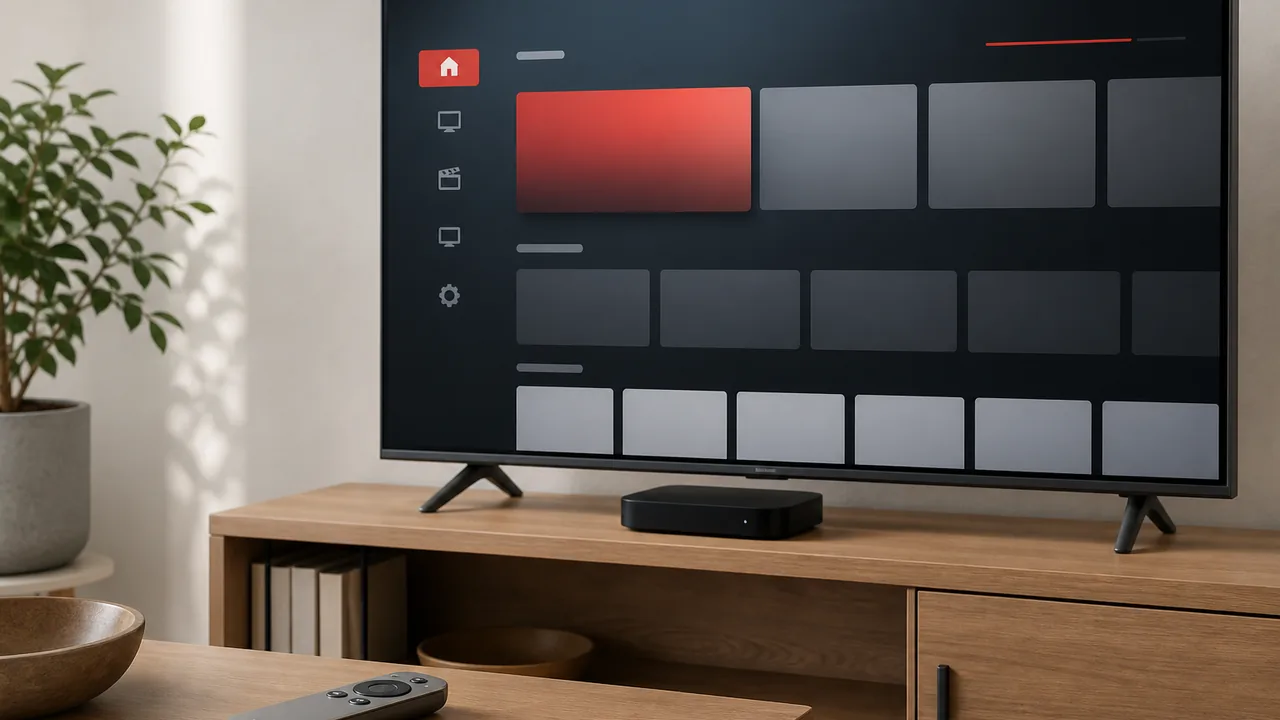
You can watch authorized IPTV on Apple TV by installing a compatible player from the Apple TV App Store, choosing the login method your provider supports, and entering the supplied details exactly. The player is only the viewing application. It does not include channels, films, series or a subscription by itself.
The cleanest setup is a current Apple TV model with an App Store, an actively maintained player, and a stable home connection. Apple says Apple TV 4K and Apple TV HD can download apps, while the third-generation Apple TV can only update its built-in apps. Check the model before choosing a player around one device.
What you need before starting
Prepare the setup information before opening the App Store. This avoids installing several players that cannot use your account format.
You need:
- An Apple TV 4K or Apple TV HD with access to the App Store
- An Apple Account signed in on the device
- A compatible player from its verified App Store listing
- Authorized access details from your provider
- A television input configured for the Apple TV
- Stable Wi-Fi or Ethernet where the model supports it
Keep the server address, username and password private. Do not paste them into public playlist checkers, social-media comments or unofficial conversion websites.
Choose an Apple TV IPTV player carefully
Search the App Store on the Apple TV itself. App availability can differ by country, device generation and tvOS version, so a player shown in an old tutorial may not appear on your device.
Before selecting a player, check:
- The developer name and official App Store listing
- The date of recent updates
- Whether it supports your supplied login format
- Live television, VOD and series navigation
- Subtitle and alternate-audio controls
- Favorites, search and remote-control usability
- Its privacy information and any separate activation fee
Avoid modified apps, unofficial installation profiles and websites offering a paid player for free. Apple TV is designed to use applications distributed through its App Store, and that is the safest place to begin.
How to install an IPTV player on Apple TV
Open the App Store from the Apple TV Home Screen, choose Search, and enter the exact player name or a general phrase such as IPTV player or M3U player. Open the listing and verify the publisher before selecting Get or the displayed price.
When installation finishes, open the player and review its supported login choices. Do not buy a separate player activation until you have confirmed that it accepts the access method you already have.
If the App Store is missing, confirm the Apple TV generation. Apple states that the App Store is not available on the third-generation model. Updating that model does not turn it into an Apple TV HD or Apple TV 4K.
Add your authorized IPTV access details
Player labels vary, but most setups use one of two approaches.
Server login with username and password
Some players request a profile name, server address, username and password. Enter the complete server address, including the protocol and port when the provider supplied them. Preserve capitalization and remove accidental spaces.
Use a simple local profile name such as Living Room. The profile name does not change the account and does not need to contain the password.
M3U playlist and EPG address
Other players accept an authorized M3U playlist URL and an optional electronic programme guide address. Enter each URL in its correct field. A playlist and an EPG serve different purposes: the playlist supplies playable entries, while the EPG maps schedule data to channels.
Never shorten or convert a private playlist through an unknown website. If the URL is difficult to type with the remote, use a secure input method available within your own devices and check the final address before saving.
Let the first synchronization finish
Large live and VOD catalogs can take time to organize on the first launch. Leave the player open until its categories, artwork and guide information have finished loading.
Then test a small, repeatable sample:
- Open two live categories and change channels several times
- Search for two known VOD titles
- Start a film and one series episode
- Change subtitle and audio tracks where available
- Add and remove a favorite
- Return to the Home Screen, reopen the player and repeat one test
This separates a successful first load from a setup that only appeared to work once. Our IPTV trial checklist gives you a fuller test plan before choosing a longer subscription.
Improve Apple TV playback quality
Begin with automatic video output and format matching rather than forcing the highest setting for every source. The television, HDMI input, app and content must all support the selected format.
For the network, use Ethernet when your Apple TV model provides it and cabling is practical. Otherwise, place the Apple TV where it receives a strong Wi-Fi signal and keep it out of a closed cabinet that traps heat or weakens reception.
If playback pauses:
- Test another legitimate streaming app on the same Apple TV
- Restart the player and Apple TV
- Restart the router once
- Compare a quieter household period with the busiest evening period
- Move closer to the router or test Ethernet where supported
- Check whether one source fails or every source fails
Use the internet-speed guide and buffering checklist to identify whether the problem is the player, device, Wi-Fi or wider connection.
Fix common IPTV problems on Apple TV
The player does not appear in the App Store
Confirm the device model, Apple Account region and tvOS version. The app may be unavailable for that region or model. Do not change the account country casually because it can affect purchases and subscriptions. Choose another verified compatible player or use a supported current device.
The login is rejected
Check the entire server address, capitalization, password and login method. Confirm that the account is active and that the Apple TV date and time are correct. A working M3U URL cannot always be pasted into a server-login form, and server credentials cannot always be added as a single playlist URL.
The profile loads but categories are empty
Allow the first sync to complete, refresh the playlist once, and check whether categories are hidden by the player. Test the same authorized account on one other compatible device. If it is empty everywhere, contact the provider with the exact time and category rather than repeatedly reinstalling the app.
The app freezes or closes
Force quit the app, reopen it, and restart the Apple TV. Apple recommends keeping tvOS current; updates are available under Settings, System and Software Updates. If the player remains unstable, check for its update and reinstall it from the App Store only after preserving the login details.
The picture is not 4K or HDR
Confirm that the Apple TV, player, source, HDMI input, cable and television support the requested format. A 4K menu does not prove that every stream is 4K. Keep format matching enabled where suitable and compare the television’s signal information during playback.
Keep the setup private and maintainable
Use the official App Store, install updates deliberately and keep a private record of the player name and login method. Do not share screenshots that expose a full playlist URL, server address, username or password.
For a household Apple TV, enable purchase controls if children use the device. Some free players offer optional in-app purchases, and a Get button does not mean every feature is free.
The best setup is not the player with the longest feature list. It is the one that supports your account format, works reliably with the remote, receives updates and makes it easy to test live television and VOD without exposing private access details.
Our recommended Apple TV setup
Start with a current Apple TV model, update tvOS, install one verified compatible player, add one profile and let it synchronize fully. Test playback, search, subtitles, audio and a complete app restart before adjusting advanced settings.
If you are still deciding between platforms, compare Apple TV with other options in our IPTV device guide. For help with your exact model and login format, send the model number and error wording through StreamHub WhatsApp support without including the password in the first message.