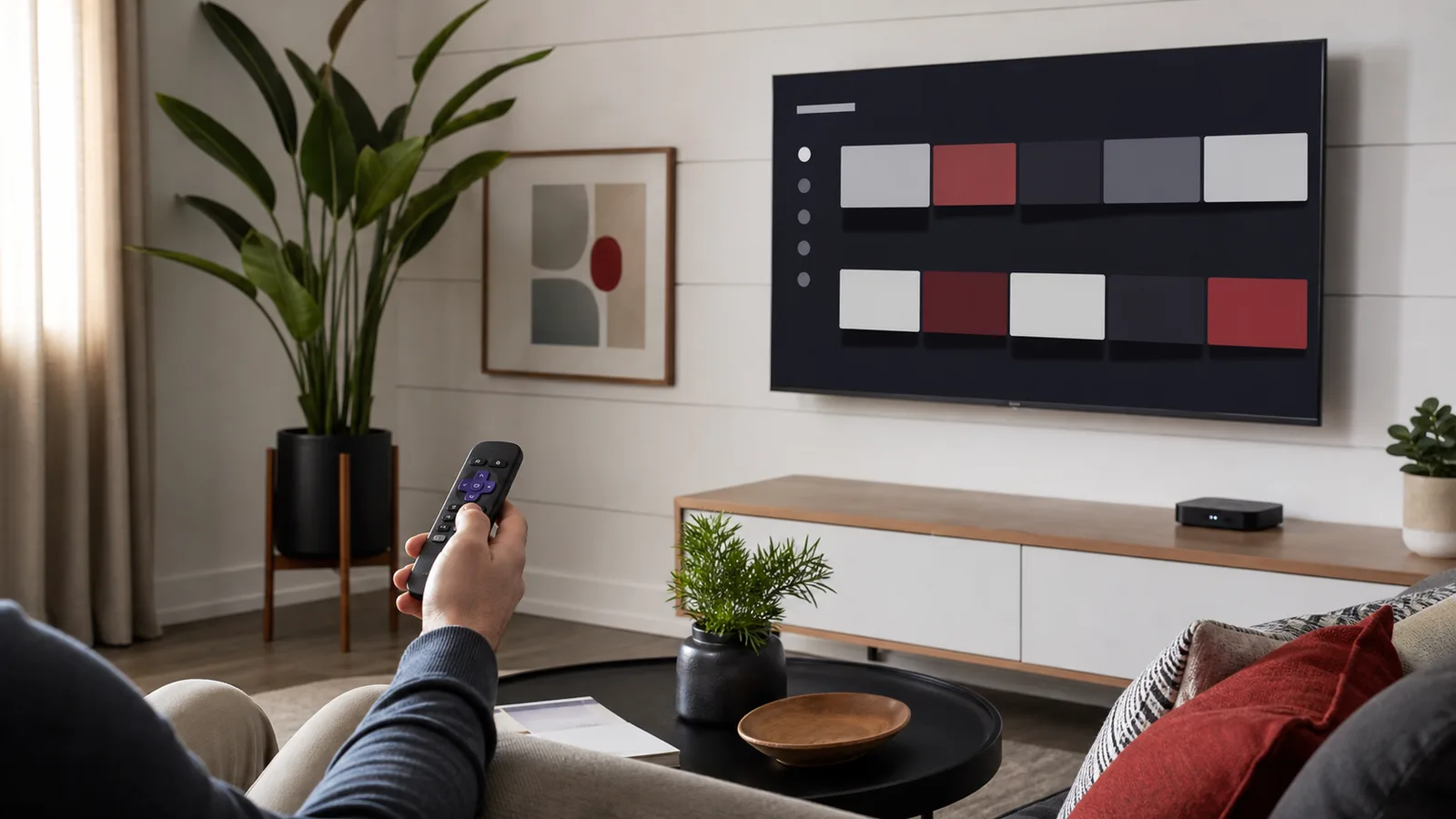
Direct answer: You can watch authorized IPTV on Roku by installing a compatible player from the official Roku Channel Store, using screen mirroring from a supported phone or computer, or connecting a separate streaming device that supports your preferred player. App availability changes by country and model, so check the official store before choosing a subscription around one specific app.
When customers ask us about Roku, the most useful first question is not which playlist they have. It is whether they want a native Roku app, occasional casting, or a permanent living-room setup. Those three situations lead to different recommendations.
Can you install IPTV on Roku?
Roku supports applications distributed through its Channel Store. If a compatible IPTV player appears in the store for your account region, install it there and add the authorized access details supplied by your provider.
Roku is more restricted than Android TV or Fire TV. You cannot assume that an Android APK or television tutorial will work on Roku. Avoid websites promising secret codes, jailbreaking or unofficial channel packages. They create unnecessary security risk and often become outdated when Roku changes its platform.
An IPTV player is only the playback interface. It does not automatically include channels, films or a subscription. Use it only with content you are authorized to access.
Option one: use a player from the Roku Channel Store
Start on the television rather than downloading files from a third-party website.
Install the player
- Press Home on the Roku remote
- Open Streaming Store or Search
- Search for IPTV player, M3U player or the exact player recommended for your account
- Open the app page and verify its publisher, description and recent reviews
- Select Add channel or Install
- Launch the player and note which login methods it supports
Some players accept an M3U URL. Others use a server address, username and password. A player may also require activation through its own official website. Never paste access details into an unrelated playlist converter or public checker.
Add the account carefully
Enter the information exactly as supplied. A missing character, extra space or incomplete server address is enough to produce an empty playlist or login error.
After the first sync, test:
- One live category and several channel changes
- Search for two known VOD titles
- A film and a series episode
- Subtitle and audio selection
- Remote navigation and the back button
- A full restart of the Roku and player
The initial catalog can take longer to load than later launches. Let the first synchronization finish before deciding that the app is slow.
Option two: mirror a phone or Windows computer
Screen mirroring is useful when no suitable native player is available or when you only watch occasionally. The source device runs the player and sends the screen to Roku.
Prepare Roku for mirroring
Open Settings, then System and Screen mirroring. Choose the prompt or allow option that fits your household. Menu names can vary by Roku software version.
Keep the source device and Roku on the same trusted home network. On Android or Windows, open the system casting or wireless-display control, select the Roku, approve the connection on the television, then start playback in the authorized player.
Mirroring has tradeoffs:
- The phone or computer must remain active
- Notifications can appear unless they are disabled
- Battery use can increase
- Some applications restrict mirrored playback
- Quality depends on both the internet connection and local Wi-Fi
For regular evening use, we prefer a native television player or dedicated device. Mirroring is convenient, but it adds another wireless step that can complicate troubleshooting.
Casting and mirroring are not the same
With mirroring, Roku displays the source device’s screen. With true casting, the application hands playback to a compatible receiver and the phone becomes a controller.
Do not assume that a Cast icon means every Roku model is supported. Check the application and Roku documentation for the exact feature. If the player lists only Chromecast support, that does not automatically mean Roku will appear as a destination.
When an external streaming device is simpler
If your preferred player is unavailable on Roku, connecting a current Google TV, Android TV or Fire TV device to an HDMI input can be the cleanest solution. You keep the Roku television while using the external device for the wider app selection.
We recommend this approach when:
- The household watches daily rather than occasionally
- A specific supported player is important
- Mirroring is unstable or inconvenient
- The television’s Roku software is old
- You want easier app updates and troubleshooting
Our Google TV and Fire TV guide covers that route. If you are comparing hardware, read the IPTV device-selection guide before buying anything.
Fix common Roku IPTV problems
The player is missing from search
Confirm the Roku account region, television model and software version. App availability can differ by country. If the player is unavailable, choose another store-listed player, use mirroring, or connect a compatible external device.
The app opens but the playlist is empty
Re-enter the complete access details, confirm that the account is active, and allow the first sync to finish. Test both live television and VOD. If every category is empty on multiple devices, contact the provider with the exact error.
Mirroring cannot find the Roku
Check that both devices are on the same local network, restart them, and confirm that screen mirroring is enabled. Guest Wi-Fi often prevents devices from discovering one another.
Playback buffers
Test another legitimate streaming application on the Roku. If several services struggle, restart the router and Roku, compare Ethernet where the model supports it, and test closer to the access point. Use our internet-speed guide and buffering checklist to isolate the cause.
The remote feels awkward inside the player
Try the player’s focus, list and back controls before committing to it. A large catalog is frustrating if basic navigation requires repeated clicks. We consider remote usability part of the trial, not a small cosmetic detail.
Our recommended Roku setup
For occasional viewing, start with an official store player or screen mirroring. For daily use, test a native player first and add a supported external device only if the Roku catalog does not meet your needs.
Do not pay for unofficial unlocking instructions. Keep the Roku updated, use official app sources, and write down the player name and login method before contacting support.
If you want help matching a Roku model to a practical setup, send the model number, country and preferred viewing method through StreamHub WhatsApp support. You can also use the installation hub for setup paths covering other televisions and streaming devices.